Updates and Errata
-
50 Years of Amateur Radio Innovation
Check out the 50 Years of Amateur Radio Innovation index. [PDF]
-
200 Meters & Down: The Story of Amateur Radio
View the 200 Meters and Down index. [PDF]
-
Arduino for Ham Radio by Glen Popiel, KW5GP
Here you will find PDF files for the sketches and libraries that you can print out and study, as well as the sketch and library files themselves for use with the Arduino projects in this book.
-
New TLW Software: As described in the article in the June 2014 QST, a new version of the popular TLW software is available as an upgrade for any who owns an Antenna Book CD. Download the zip file here, extract the files and follow the instructions.
Software note: 19th edition software will not run on 64 bit systems, as Microsoft has dropped support for 16 bit software with their 64 bit Operating Systems. Most of the 21st edition software will run on 64 bit systems, though there is some legacy DOS/Basic software that has not been rewritten for 64 bit systems on the companion disk. Read the 21st edition ARRL Antenna Book Instructions for Software/Data.
Kindle Editions
Supplemental content for the Amazon Kindle editions of the ARRL Antenna Book. Click here to dowload (compressed Zip file; 480 MB).
A replacement file for Table 19 in Chapter 18 is now available. [PDF]
Check out the product notes and erratta for the 22nd edition of the Antenna Book on the ARRL Antenna Book Reference page.
Both the 20th and 21st editions specify the voltage rating for Belden 9258 (RG-8X) cable as 600 Vrms. Instead, this should be 300 Vrms.
Software manuals in Adobe PDF format:
- YW
- TLW
- HFTA
- Notes on Software
Read this document for problems running the software on Windows Vista
New Instructions on Using HFTA and MicroDEM for Locations Outside the USA
The US government has released digital terrain data that covers about 80% of the world (between 60° N and 54° S latitudes). The survey data was generated during a NASA Space Shuttle mission in February 2000, and is called SRTM (Shuttle Radar Topography Mission) data.
Inside the continental USA, parts of Alaska, Hawaii, Puerto Rico and certain US Territories in the Pacific, SRTM data is available with a resolution of 1 arc-seconds (approximately 30 meters, equivalent to seamless NED data). Outside these areas, the US government has restricted the resolution to 3 arc-seconds (roughly 90 meters). Despite these restrictions in resolution, the SRTM digital data is easier to use to generate terrain profiles for HFTA than are any manual mapping methods.
The HFTA.PDF operator’s manual steers the SRTM user to the website for the CGIAR Consortium for Spatial Information and gives detailed information on how to select and download the desired terrain data.
Dean Straw, N6BV, has provided updated statistical elevation-angle files for use with the HFTA application contained on the Antenna Book CD. During the original CD installation process you were asked to specify the region where you live so that appropriate statistical elevation-angle files could be installed along with HFTA. You may wish to replace the files currently in this directory with these to achieve greater accuracy. The statistical elevation angles are computed for the full 11-year solar cycle from transmitting sites indicated by the filename.
Problems reading the Antenna Book CD: If you are running Windows XP and experiencing difficulty reading and installing the Antenna Book CD, visit the Microsoft Support page for further support.
-
ARRL Exam Review Software Suite
In the General Class portion of the program, for question G5C07, in the equation for turns ratio, the value under the square root sign should be 150, not 125.
-
Page 3-6, the caption of Figure 3-6 is not correct. The Drake MN-2000 is a Pi-C tuner, not a basic pi tuner as indicated. Thanls to OZ1XB:
"This tuner is not a Pi-type circuit but a Pi-C circuit with the input capacitor and the coil being fixed (band-switched) and the two output capacitors being variable. This is very clever design, the Q is constant (18) over the tuning range and there is only one match for a given impedance in contrary to the T-tuner."
Page 9-5: The reference to Figure 1 in the text should be to Figure A.
Page 10-3, Figure 10-5: Delete the sentence: At (A), before assembly, at (B) assembled line section.
Page 12-4, Figure 12-2: The caption should say; “Note that it is necessary to provide a choke on all remote tuner connections, as shown….”
Page 12-4, Figure 12-3: The note {“Ground” (to Inner Chassis Only)} is in error. It should be located adjacent to the ground symbol and should say {“Ground” (to Outer Chassis Only)}.
Page 13-5, Figure 13-5: The reference (red) should be to (solid). The dotted pattern is for the 1/4 l monopole.
Page 13-5, Inverted L section: a sentence says a 1/4 l monopole for 160 meters, for example, needs to be around 130 (not 260) feet long.
Page 14-5; Table 14-1: The correct model number for the Palstar tuner is AT1500CV, for the Ten-Tec tuner is 238A.
Pages 14-34, 14-35; Tables 14-18, 14-19: The correct headings are 80, 40, 20, 15 and 10 meters. The Johnson Matchbox tuners did not cover 160 meters.
The Table of Contents makes reference to an Appendix A, but this material (an article) does not appear in the printed book.
Be sure to check out the ARRL Guide to Antenna Tunners expanded Index.
-
Kindle Editions
Supplemental content for the Amazon Kindle editions of the ARRL Handbook. Click here to download (compressed Zip file; 425 MB).
2012
A copy of the article "A Modern Directional Power/SWR Meter" by Bill Kaune, W7IEQ, featured in Chapter 25 is missing from the supplemental CD-ROM. Download "A Modern Directional Power/SWR Meter" now.
2015
A copy of the article "Simplified Design of Matching Networks Part III" is missing from the collection of supplemental files on the CD-ROM. Download the article here.
On page 9-10, Figure 9.11, there are two footnotes at the bottom of the figure that have been partially cut off in the printing process. Click here to download a PDF replacement page.
Visit the ARRL Handbook Reference page for notes and errata for the ARRL Handbook. -
Please visit these page for supplemental information, updates, and errata for current-edition ARRL License Manuals and Q&As.
The ARRL Ham Radio License Manual (Technician Class) and ARRL's Tech Q&A
The ARRL General Class LIcense Manual for Ham Radio and ARRL's General Q&A
The ARRL Extra Class License Manual for Ham Radio and ARRL's Extra Q&A -
The original edition of Antenna Compendium Volume 4 included a 3.5-inch diskette with data files and software applications. Many of the articles contained within this book make reference to these files and programs.
The software diskette is not included in this printing of Antenna Compendium Volume 4 because most of the programs will no longer function on modern computers. However, the original Antenna Compendium Volume 4 software is still available.
-
Click here to download a compressed zip file containing modeling data and software for Antenna Compendium Vol 6.
-
Check out the Antenna Compendium Volume 7 software setup application.
-
The article "A Short Boom, Wideband, Three Element Yagi for 10 Meters" was printed without the second page. Download the entire "A Short Boom, Wideband, Three Element Yagi for 10 Meters" now. [PDF]
-
Check out the Antenna Designer's Notebook modeling files that expand on the set originally provided with the book's CD-ROM.
-
Antenna Physics: An Introduction, 2nd Edition
Antenna Physics: An Introduction
Missing information from Page 3-17 to 3.18
Antenna Polarization
Thus far we have assumed that our antenna is linear, an antenna element in a straight line. Such an antenna is said to have linear polarization. In a linear polarized antenna, the current can only flow along that line, either one way or the other. The resulting radiated fields’ directions, according to Maxwell’s equations are exactly defined: The electric field (E) is parallel to the direction of accelerating charge (parallel to the wire). The magnetic field (H) is perpendicular to the line of the wire. See Figure 3.22. In “outer” free space a linear polarized wave’s direction is arbitrary because there is no reference for a line in space. Near or on the Earth, the Earth’s surface defines a plane. With terrestrial reference, on Earth if the E field is vertical it is said to have vertical polarization. If the E field is horizontal, it is said to have horizontal polarization.
The other type of polarization is circular polarization (CP). If we take two dipoles, one horizontal and one vertical, and feed them 90 degrees out-of-phase shown in Figure 3.23, the amplitude of the instantaneous radiated fields will follow the sinusoid acceleration of the current on the elements. Since they are 90 degrees out-of-phase, the E field vector will rotate (either clockwise or counter-clockwise) at the same rotation rate as the radiated frequency. The “clockwise” and “counter-clockwise” direction of field rotation is termed right-hand and left-hand circular polarization.
The “hand” polarization is determined by viewing the CP antenna from its rear and thus the direction of radiation. From this vantage point if the field is rotating clockwise, it is “right polarized,” if it is rotating counter-clockwise, it is “left polarized.”
PADL thus also will define the wave polarization, mainly which direction the charges are accelerating: up/down, right/left, and or in a circle. An important antenna type called a helix is a “natural” CP antenna and will be discussed in Chapter 9.
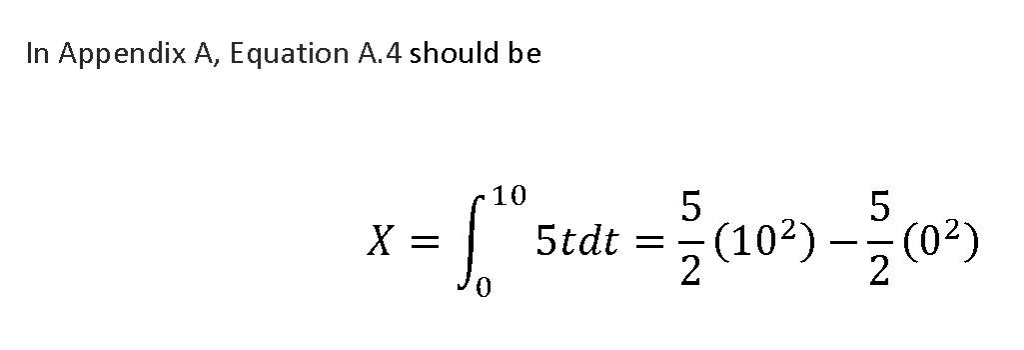
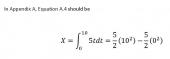 CORRECTION Appendix A, Equation A.4
Correction from Bob Zavrel, W7SX.
The final paragraph under "Magnetic (?) Loop Antenna" on page 9.4 should be deleted. The paragraph begins with "induction fields..." and ends with "...and other electric devices."
Corrections to Second Edition Second Printing.
Correction from Bob Zavrel, W7SX.
The section "Extreme System Design" from CH. 10 has been rewritten and can be viewed here.
-
AView Software for QST, QEX NCJ, Ham Radio
AView is a viewer program for Windows (Windows 98 and XP only). AView is designed for use with several ARRL CD-ROM publications (QEX Collection CD-ROM, NCJ Collection CD-ROM, Ham Radio Magazine CD-ROM and QST View 1995-1999). It makes it possible to search material within these CDs on a limited basis.
NOTE: The software provided here is an update; the prior version of AView must already be installed on your computer for the update to work properly.
1) Download the AV110.zip file and extract the files into an empty directory.
2) Run the AV110.EXE file from Windows Explorer or using Start|Run.
3) When the initial dialog window appears, click the Setup button.
-
First Edition, First and Second Printings – Errata
Chapter 6
Page 6-2, “Wire length, 468/F,” would be better labeled “Wire length (feet) = 468/f, f in MHz”
Page 6-4, Table 1 should be labeled as Table 6-1.
Chapter 8
Figure 8-6. The dashed line should read “Perfect Ground.”
Chapter 9
Page 9-3, right column end of first paragraph. There should be a reference to Fig 9-5/
Page 9-4, left column. The two references to Fig 9-5 should be to Fig 9-6
Chapter 10
Fig 10-3. The indicated 180° phase reversal is generally obtained by twisting the transmission line to one dipole by half a turn.
P 10-4, top of first column the 200 ? and 100? should be 200 ? and 100 ? respectively.
Chapter 11
Figs 11-1, 2, 3, 6, 10, Replace 3.8 MHz with 3.75 MHz.
Figs 11-5, 7, 9. While 50 ? balanced line would be great for this application, it is not available. Instead the figures should show a 1:1 balun at the feed point and 50 ? coaxial cable going to the radio.
Fig 11-13. The frequency axis should be the same as Fig 11-14.
Chapter 12
Table 12-1, the four subheads, Amateur, Aeronautical, Maritime and Broadcast should be spaced above the four frequency columns.
Chapter 19
Figs 19- 1, 3, 6, 7, 8, 9, 11, 12: “Freq = 10 MHz” should be “Freq = 145 MHz”
Chapter 21
“Designing an LPDA” p 21-4, bottom of center column should read:
For any value of ?, you may determine the optimum value of ?opt, as follows:
Chapter 22
p. 22-3, line 6, “...the so-called diamond shape, is considered by some to be less vulnerable to ice build up...”
p. 22-4, end of 3rd paragraph, add frequency “... becomes more evident as you move to higher frequency bands ...”
p. 23-6, bottom of left column, add frequency” ... the SWR is quite high on the higher frequency bands ...”
Chapter 23
Fig 23-11, the correct value of C1 is 100 pF. The note should say that if C2 is around 75 pF, C1 is not needed.
Chapter 24
Review Question 24-1, the gap should be closed.
Chapter 26
p 26-6, last line in first subsection: “and Eq 2 reduces to:” should be “and Eq 3 reduces to:”
Appendix A
p A-2, The last sentence in the first section (EZNEC) should say: “The demo is restricted in size to 20 segments, enough to get a feel for modeling simple antennas, such as a dipole.”
Figure A-1. The right hand end of the antenna should be labeled “End 2 Coordinates: X, Y, Z = 23.9, 0, 49.2 Feet”.
-
On page 8-2, the last paragraph in the first column states that you are building a low-pass filter. The last sentence of the page should state: As you would expect, high-pass and band-pass configurations are possible in addition to the low-pass filter just discussed.
On page 23-7, Table 23-3, the temperature should be 293 degrees K in both cases.
-
Energy Choices for the Radio Amateur
Page 5.3 -- In the Minimum Case Example section, the first paragraph should say "Say your cabin has 10 LED light bulbs at 6 W each, and half of them are on for about five hours a night — that’s 150 Wh. Your ham radio is on for 12 hours a day drawing 12 W (1 A during receive), needing 144 Wh. And it transmits 10% of the time, drawing 120 W (another 12 W average), for another 144 Wh. For this system, your energy needs for lights and ham operation are about 440 Wh."
(Thanks Don Goff, WA5DG)
-
Experimental Methods in RF Design
Author Wes Hayward, W7ZOI, is maintaining a collection of errata for Emx on his Web site at http://w7zoi.net/.
-
Introduction to Emergency Communication Course Transcript
For updates to the course content as published in the 1st printing, click here.
For updates to the 2nd printing, click here.
Click on the appropriate file name to download the audio and video files referenced in this course.
Topic File ID File Name Description 7a 1 I - nondirected net.wav Non directed net 7a 2 I – directed net – Nurses Trapped.mp3 Directed net - 7a 3 Clip0007.flv Net Mission 9 4 5-b-2 picture.flv Work environment noise 14 5 Message topic 14 audio file.mp3 Sending a message with voice -
Introduction to Radio Frequency Design
Click here to download a compressed Zip file that contains all the companion software for Introduction to Radio Frequency Design.
-
More Arduino Projects for Ham Radio
More Arduino Projects for Ham Radio by Glen Popiel, KW5GP
Here you will find files for the sketches and libraries, and other support files, for use with the projects in this book.
-
ARRL Morse Code Oscillator, How It Works
by Mark Spencer, WA8SME
This supplement is intended for use with the ARRL Morse Code Oscillator kit, sold separately.
Read More -
ON4UN Low Band DXing, 5th Edition
--Figure 8-11 on page 8-8 describes the design of AI1H’s DX Special antenna. The lengths of the coaxial segments are given in meters, but the section shown in the book as being 4.34 meters long is incorrect – the length should be 4.5 FEET – converted to meters it would be 1.39 meters.
--For readers who have installed the Low Band DXing CD on their computers, you can easily access 42 pages of reference material (Chapter 16) by opening Windows Explorer and navigating to this directory:
C:\Program Files\Low-Band DXing\Low-Band DXing Supplemental Material\Chapter 16
Alternatively, you can simply copy and paste the text above into a Web browser such as Internet Explorer or Firefox to view the file.
--
A Revision to Section 3.81. of Low Band DXing (new 10-15-2021)
Provided by William R. Wortman, N6MW
Click here.
-
The MPLab software referenced in the book runs under Windows. It may be possible to run MPLab in a MacOS environment configured for Windows emulation.
Also, for the MPLab software to work properly, you must copy the chapter directory from the CD over to your computer hard drive. Then in MPLab, use the "open project icon" (open project...the green file folder), navigate to where you put the chapter folder, and open the project file for that chapter.
Prototyping Board Parts List
The prototyping hardware (programmer, boards and parts) addressed in this book is available from ARRL as a complete kit (sold separately).
Quanity Part DigiKey Parallax CanaKit Microchip 1 PIC Programmer UK1301 DV164120 1 Prototype Board and Wire Kit 438-1046-nd BB-102W 1 LCD Display 27977 PX-27977 1 LCD Extension Cable 805-00011 PX-805-00011 2 PIC16F676 PIC16F676-I/P-ND IC-PIC16F676 1 MCP41010 Digital Pot 10K MCP41010-I/P-ND IC-MCP41010 4 470 Ω 1/4 Watt Resistor 470QBK-ND R5-25-470R 1 .01uF Capacitor P4582-ND CP-103-50V 2 1N914 Diode 1N194-TPCT-ND DS-1N914 1 5V Regulator 7805 LM78L05ACZFS-ND IC-LM78L05 1 9V Battery Clip BH9V-PC-ND DX-BH9V-PC 4 Button Switch SW403-ND SW-1102B 2 Red LED 67-1105-ND LED-5MRED 2 Yellow LED 67-1116-ND LED-5MYEL 2 Green LED 67-1098-ND LED-5MGRN 2 2N3904 Transistor 2N3904FS-ND TR-2N3904 1 Slide Switch EG1903-ND SW-SPDT 2 20K Potentiometer P16-20KB-SP1 1 Speaker 102-1142-ND DX-102-1142 1 7-Segment LED 7SEG-CCR-56 1 14-Pin DIP Socket AE9989-ND SKT-14 1 8-Pin DIP Socket AE9986-ND SKT-8 2 3-Pin Male Connector WM2001-ND DX-WM2001 2 3-Pin Female Connector WM4301-ND DX-WM4301 10 Connector Pins WM1114-ND DX-WM1114 1 Keyer Circuit Board C120-ARRL PC Board templates and parts layout diagrams for the CW keyer featured in the book are available as a single Zip file. You can download it by clicking
here. A diagram of the circuit board pinouts is available here.
On page 6-7 immediately above the discussion of the ANSEL register is a figure depicting the ANSEL register. There is an error in the depiction of the register, specifically in the mapping of the register bits to the appropriate pins.
The ANS1 bit is incorrectly associated with pin RA2 and the ANS2 bit is incorrectly associated with pin RA3. As the text indicates, pin RA3 has a separate dual purpose and does not have an analog resource assigned to
it. There is no mapping to the ANSEL register for RA3. Instead, the ANS1 bit is associated with pin RA1. The ANS2 bit maps to the RA2 pin. The other bits are correctly associated with the appropriate microprocessor pins.December 7, 2011 -- We have discovered with the manufacturer of the PIC Kit a tolerance issue with the source (supplier) of Q2, a P-channel FET used to switch on the Vpp source. The problem was identified by author Mark Spencer, WA8SME, after hearing from a few customers who were experiencing difficulty programming PICS. Mark has discovered a short solution for the error 27 message that will get you back on track. It will take a few extra steps in the program development and sending them to the PIC, but the procedure will allow the CanaKit programmer to load the programs you develop in MPLab into the PIC.The work-around is described in a PDF document that you can download here.
All programming software on the supplemental CD is also available for downloading here.
-
Radio Science for the Radio Amateur
Page 13-8, fourth paragraph.
"Going clockwise around the perimeter, you will have 'Wavelengths toward Load'" should read 'Wavelengths toward Generator'
In the next sentence, "going counterclockwise, 'wavelengths toward generator,'" should read 'wavelengths toward load.'
-
Remote Operating for Amateur Radio
On page 1-7 the following sentences appear:
“An American amateur can access and operate a foreign-based Internet remote control station if the host station is in a country that participates in the European Conference of Postal and Telecommunications Administrations (CEPT) or International Amateur Radio Permit programs. Again, the list is available at the Web site noted previously. The American Amateur must use the call sign prefix of the country where the host station is located, followed by his call sign. For example, if the host station is in Austria, I would need to identify as OE/WB8IMY.”
This section is incorrect and will be deleted in future printings of this book. The procedure applies only to individuals operating abroad during short stays in a foreign country. It does NOT apply to remote-control operation of a station located in a foreign country.
-
Since 2017, the listings included in The Repeater Directory have been supplied by RFinder. RFinder offers an online subscription service to its worldwide repeater database (sold separately). ARRL does not curate the listings included in the Repeater Directory. We encourage frequency coordinators and repeater owners to review listings published in the annual Repeater Directory, and to submit corrections directly to RFinder.
RFinder subscribers can search for, and request updates, to repeater listings here. You can submit a request to add a repeater to the RFinder database here.
-
Click here to download the EZNEC files for many of the antenna designs shown in this book.
-
Understanding Basic Electronics
On page 17-3, in the middle column last sentence…
"As the current begins to decrease (between 90° and 180°), the inductor voltage once again opposes this change by creating a voltage of negative polarity."
Rather than "between 90 and 80" it should read "between 90 and 270."
Appendix B, page 3 has two errors:
1) the illustrations for Example 2 and Example 3 have been swapped.
2) the link to the TI Guidebook for Teachers has changed. It has changed to https://education.ti.com/en/guidebook/details/en/ED3059C9A7F74958BD6CC2EDD8517352/30xiitg
-
Version 17:
The CTCSS information for many of the repeater listings in North and South Carolina, Georgia, Tennessee, Kentucky, West Virginia, Mississippi and parts of Virginia is missing from Version 17 of TravelPlus. This error was caused by an omission in the data provided to ARRL by the coordinating body.
Version Compatibility Error Message
When launching TravelPlus for Repeaters Version 15 and 16 users may receive an error message:
"This version of TravelPlus is not compatible with the version you have installed".
This problem is related to the prior version not being properly uninstalled as required. Uninstalling and reinstalling the new version does not entirely fix the problem because improper settings have already been written to a hidden folder and file.
The following steps to correct apply to Windows XP, Windows Vista and Windows 7 operating systems, with exceptions as noted.
1. Log into computer as Administrator.2. Disable User Account Control (UAC) (Windows Vista / Win7 only). If UAC is on, it must be turned OFF. User Account Control (UAC) works by prompting for permission when a task requires administrative rights, such as installing software or changing settings that affect other users.
To turn UAC off do the following.In Windows Vista (actual steps may vary depending on how interface is set up)
a. Open Control Panel.
b. Select User Accounts and Family Safety. Select Add or remove user accounts
c. If logged in as Administrator this account should already be highlighted.
d. Select Go to the main User Accounts page. (may be at the very bottom)
e. Under Make changes to your user account select Turn User Account Control on or off Change security settings or
f. At Turn on User Account Control (UAC) to make your computer more secure click checkbox to deselect . Then click OK
g. Reboot. This is a must - UAC will be turned off when the computer is restarted.
To later re-enable UAC (if desired) select the above checkbox and restart.
In Windows 7
a. Open Control Panel
b. Select User Accounts.
c. Type in UAC, or go to the System and Security applet.
d. Click on Change User Account Control Settings
e. Turn off UAC by moving the slider to the Never notify position and click OK. If prompted for an administrator password or confirmation, type the password or provide confirmation.
f. Reboot. This is a must - UAC will be turned off when the computer is restarted.
To later re-enable UAC (if desired) move the slider to the preferred notification level and restart.
3. If installed, Version 14 and/or Version 15 should be uninstalled using Add / Remove Programs.
4. Some folders which need to be accessed may be "hidden" or "system" and therefore not immediately visible. If this is the case they may be temporarily shown in order to work with them.
a. From My Computer (or Computer) select from the menu
Tools > Folder Options > View tab
b. In the Files and Folders section, there is an item for Hidden Files and Folders in which there are two radio button choices under Select to Show hidden files, folders and drives,
Select Show hidden files, folders, and drives, i.e.
-- Don't show hidden files, folders, or drives
X Show hidden files, folders, and drives (SELECT THIS ONE)
Further down deselect the radio button for
-- Hide Protected Operating System Files (DESELECT THIS ONE)
and choose Yes at the Warning dialog.
c. Click Apply, then OK and close the window in use. All hidden and system folders and files should now be visible on the computer.
d. When finished with the following steps these settings may then be reverted if desired.
5. Locate the folder where the new TravelPlus for Repeaters version was INSTALLED. On most computers, this will be in Program Files at the default directory, i.e.
C:\Program Files\TravelPlus for Repeaters.
If present delete the folder "TravelPlus for Repeaters" in its entirety.
6. Locate the folder where the TravelPlus DATA is stored. By default this is normally a hidden folder. It's location depends upon which Windows operating system is in use.
On Windows XP and prior versions of Windows, this folder will be at
C:\Documents and Settings\All Users\Application Data\TravelPlus Version 15. (or 16)
If present delete the folder "TravelPlus Version 15" (or 16) in its entirety.
On Windows Vista and Windows 7 this folder will be at
C:\ProgramData\TravelPlus Version 15. (or 16)
If present delete the folder "TravelPlus Version 15" (or 16) in its entirety.
7. Reboot computer.
8. Log into computer as Administrator
9. Install TravelPlus for Repeaters
10. Launch the TravelPlus for Repeaters application.
11. Click OK a the Initial Settings dialog (make no setting changes) .
12. If desired, any operating system settings previously modified may now be reverted.
Tech Note 2: Run Time Error 94 - Invalid Use of Null
This can occasionally occur when searching for call sign information in some specific Canada locations . This search functionality is in DataSource at the Call Sign Information tab. To correct this problem, an updated ULS.MDB file is provided with instructions for installation. Click here to download. The file is large ( ~100MB) so be patient.
-
Understanding Your Antenna Analyzer
Understanding Your Antenna Analyzer
Errata – December 29, 2013
Joel R. Hallas
Please report any other needed corrections to w1zr@arrl.org.
Page 3-4 — Second column. In two places it says “reflection loss.” The correct term, as used throughout the section, is “return loss.”
The bold text in the following captions indicates additions or, in the case of Fig 6.5, a correction.
Fig 6.1 — SWR plot of a low 40 meter dipole of length 66.4 feet and resonant at 7.15 MHz, as measured (modeled) at the antenna terminals. The modeled impedance at 7.15 MHz was 52.16 – j0.047 ohms.
Fig 6-2 — SWR plot of a the same 40 meter dipole as in Fig 6.1, but measured at the end of 45 feet of ideal, lossless 50 ohm transmission line. Note that while the SWR is virtually the same, the reactive part of impedance has changed sign due to the transformation in the line. The modeled impedance at 7.15 MHz was 48.83 + j1.683 ohms.
Fig 6-3 — SWR plot at the antenna terminals of a low 67.2 foot 40 meter dipole before being adjusted to resonance at 7.15 MHz. The modeled impedance at 7.15 MHz was 54.15 + j22.28 ohms.
Fig 6-4 — SWR plot of a the same 40 meter dipole as in Fig 6-3, but measured at the end of 45 feet of ideal, lossless 50 ohm transmission line. Note that while the 7.15 MHz SWR is virtually the same, the reactive part of impedance has changed sign due to the transformation by the mismatched transmission line. The modeled impedance at 7.15 MHz was 32.65 – j3.007 ohms.
Fig 6-5 — A normalized Smith Chart. To use, divide the real and imaginary parts of the impedance by the transmission line Z0 and enter the value as a point on the chart. In this example an impedance of 35 + j12.5 ohms is normalized to the line Z0 of 50 ohms as 0.7 + j0.25 ohms and entered as shown.
January 7, 2015
Page 6-9 — First full paragraph. The reference should be to Figure 6-7, not Figure 6-8
Page 7-9 — Second full paragraph, last sentence. The correct loss is 1.76 dB, not 1.5 dB.
February 12, 2015
Page 8-3—The coax identified in the text and Figure 8.2 should be RG-196, not RG-193.
-
In the EX-1 Transmitter/Exciter project, Figure 4-9, capacitor C14 (22 uF at 25V) should be connected between the collector of transistor Q3 and ground, not to the emitter as shown.
-
Corrections for the ARRL Antenna Compendium Vol. 9.
-
Corrections for Propagation and Radio Science.


.jpg)
.jpg)
.png)
.jpg)